Go to Settings › Privacy, choose who sees the banner, pick a design and your words, click Save and publish your site. Tools like Google Analytics or a Meta pixel then wait until a visitor says yes to their kind of cookies.
dotsy gives you the tools to ask your visitors and to hold tools back. It isn't legal advice: which rules apply to your site is for you and your own advisor to decide.
Set up the banner
- Open your site and go to Settings › Privacy. Under Who sees the banner choose Smart (recommended), Always or Off.
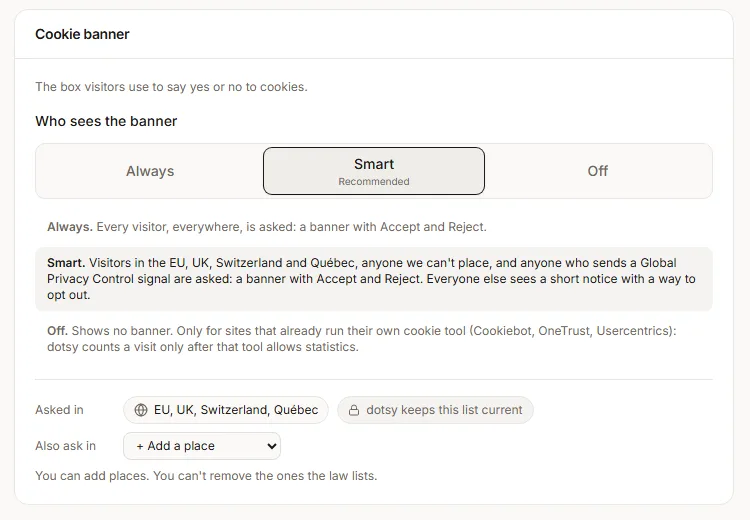
Settings › Privacy: choose who is asked. - Pick a design in the Design card: Minimal (one line at the bottom), Standard (small box in the corner) or Maximal (centred over the page). Every design starts with the same three buttons: Accept all, Reject all and Manage preferences.
- In Words, change the Headline, Text and button labels, or leave a box empty to use dotsy's words. In Privacy policy, add your Privacy policy link (for example
/privacy). The banner shows it next to the choices. - Click Preview as EU visitor to see the banner on your site. The preview shows what you last saved. Preview as US visitor shows the short notice.
- Click Save, then publish your site. The status line says Saved as a draft · goes live when you publish until you do.
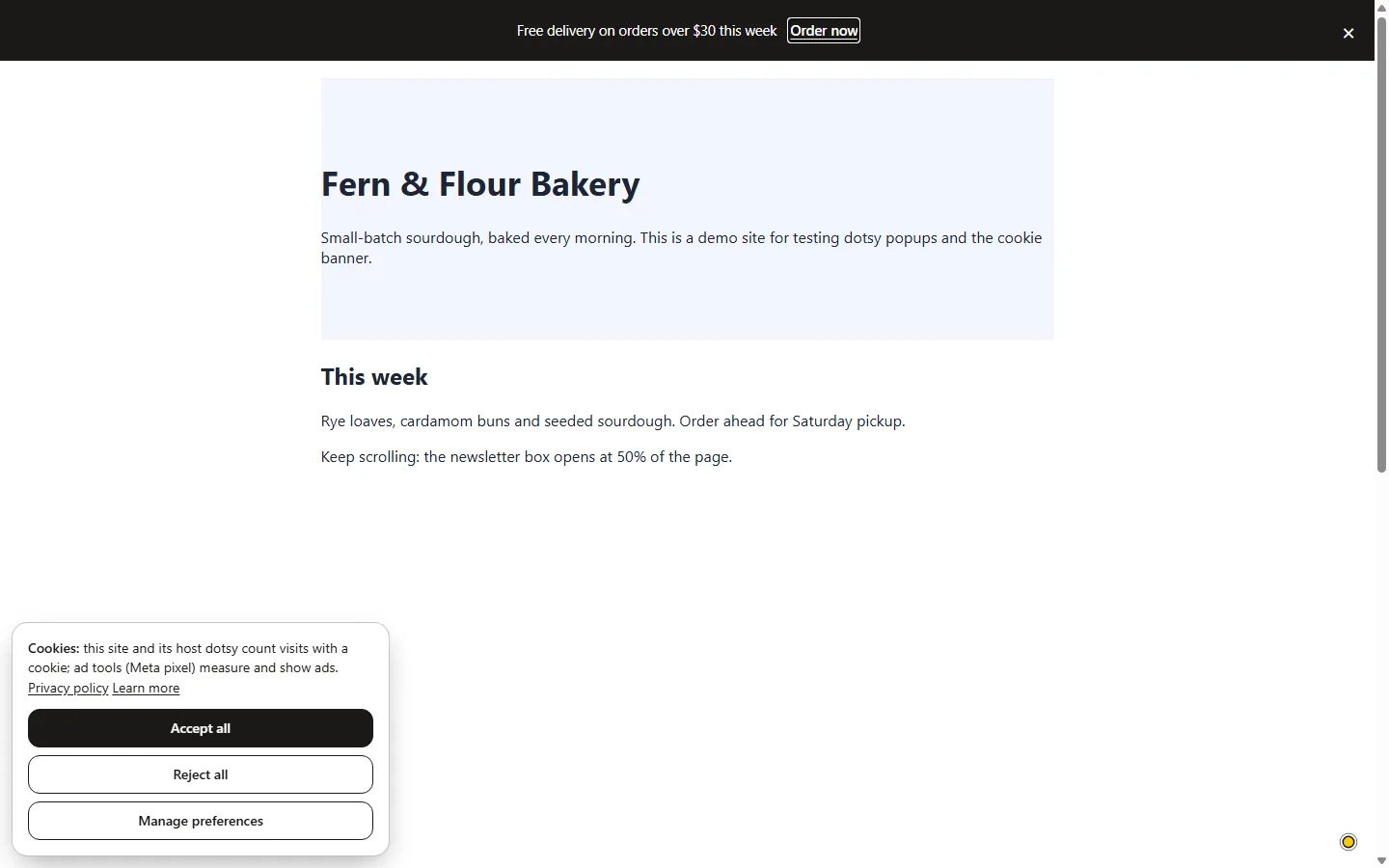
What visitors see: three buttons of the same size.
Who sees the banner
- Smart asks visitors in the EU, the UK, Switzerland and Québec, visitors dotsy can't place, and visitors who send a Global Privacy Control signal. Everyone else sees a short notice with Opt out. dotsy keeps the list of places current; under Also ask in you can add more.
- Always asks every visitor.
- Off shows no banner. Use it only when your own cookie tool asks visitors: see below.
What waits for OK
With Smart or Always, dotsy holds back the tracking tools it recognises until the visitor says yes to their kind of cookies. Statistics are dotsy's own visit count, Google Analytics, Hotjar and Microsoft Clarity. Marketing is Meta pixel, TikTok pixel, LinkedIn Insight Tag, Google Ads and Google Tag Manager. Necessary is always on and only remembers the visitor's choice.
- Go to Settings › Privacy and find What waits for OK. Each tool shows what it waits for and where dotsy found it (a page, a layout, a shared section or custom code).
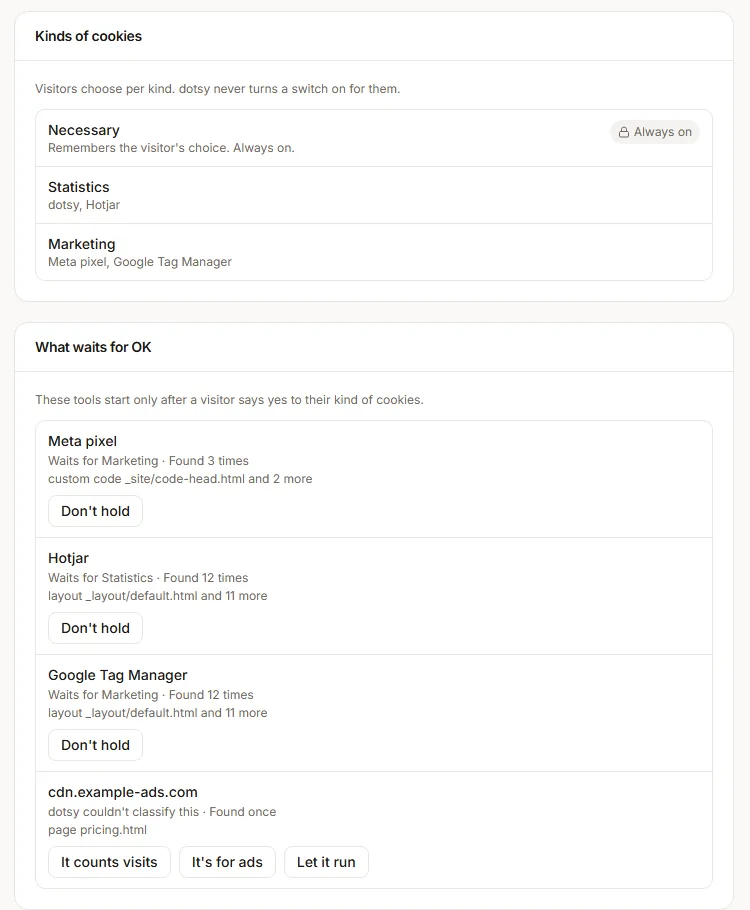
Each tool dotsy found, with what it waits for. - To let one tool run before a visitor answers, click Don't hold and confirm Let it run. Do this only when the tool sets no cookies or you have another legal basis. Hold again undoes it.
- For a tool marked dotsy couldn't classify this, click It counts visits, It's for ads or Let it run. Until you do, it runs as before.
- Click Save if the page asks, then publish your site.
Where visitors only see the notice (outside the places that are asked), the tools start right away and the visitor can click Opt out. dotsy finds tools in the pages and scripts it sends. A tool that a script adds later can't be found. Google Tag Manager waits for Marketing unless you changed it, so the tools it loads wait with it.
Change the banner's words and languages
The Words card has one tab for each language of your site, and the main language is marked main. dotsy has its own words for English, German, French, Spanish, Italian, Dutch, Polish, Portuguese, Slovenian and Croatian. For another language visitors read English unless you write the words. Use dotsy's words clears a language. The banner follows the language of the page the visitor is on.
Edit the design
In the Design card, click Edit design to open the banner in the editor. Save your other changes first. Switch between Ask, Choices and Notice and change the layout, type and colours. dotsy draws the buttons, switches and links, so you change their words in Settings › Privacy › Words. A change that would make Reject all smaller or harder to read than Accept all isn't saved, and the editor tells you which rule it broke. The Custom CSS box is checked by the same rules. Start over or Use the built-in design brings the original back.
I already use a cookie tool
Choose Off and confirm Turn it off. dotsy shows no banner, and counts a visit only after your tool (Cookiebot, OneTrust, Usercentrics, a TCF tool or Google consent mode) allows statistics. Your tool asks visitors and holds back your other tools. dotsy doesn't hold them in this mode.
How long a choice lasts
A Reject all on the banner is remembered for 24 hours; a visitor who says yes is remembered for about 13 months. A Cookie settings link on the page reopens the choices at any time. When a visitor turns a kind off, dotsy clears the cookies those tools set on your site and reloads the page.
Popups and the cookie banner
Popups don't wait for the cookie banner. The banner always sits on top, so in the same corner it can cover a bar or a slide-in.
Ask your AI assistant
If Claude, ChatGPT, Cursor or another assistant is connected to dotsy, ask it to set up the banner. get_site shows the current setting and update_site takes a cookieBanner setting.
Banner not showing
- It isn't published yet. The status line says Saved as a draft · goes live when you publish until you publish.
- The visitor sees a notice, not the banner. Outside the asked places Smart shows a short notice with Opt out. Choose Always to ask everyone.
- It is set to Off. With Off dotsy shows no banner at all.
- The visitor already answered. The choice is remembered. Use Cookie settings on the page to change it.
FAQ
Do I need a cookie banner?
That depends on your site, your visitors and the tools you use, and dotsy can't tell you. dotsy counts visits with a cookie, and Smart asks visitors in the EU, the UK, Switzerland and Québec. Talk to your own advisor about the rest.
What happens when a visitor clicks Reject all?
The tools that wait for OK don't start, and dotsy doesn't count the visit with a cookie. The banner doesn't ask again for 24 hours.
Can I use the banner with another cookie tool?
Choose Off and let your own tool ask. dotsy then counts a visit only after that tool allows statistics.