Popups and bars that match your site
You can now add popups and bars to your site in dotsy: a box, a slide-in, a full screen or a bar at the top or bottom. Each one uses your site's own fonts and colours, and you choose when it opens and on which pages.
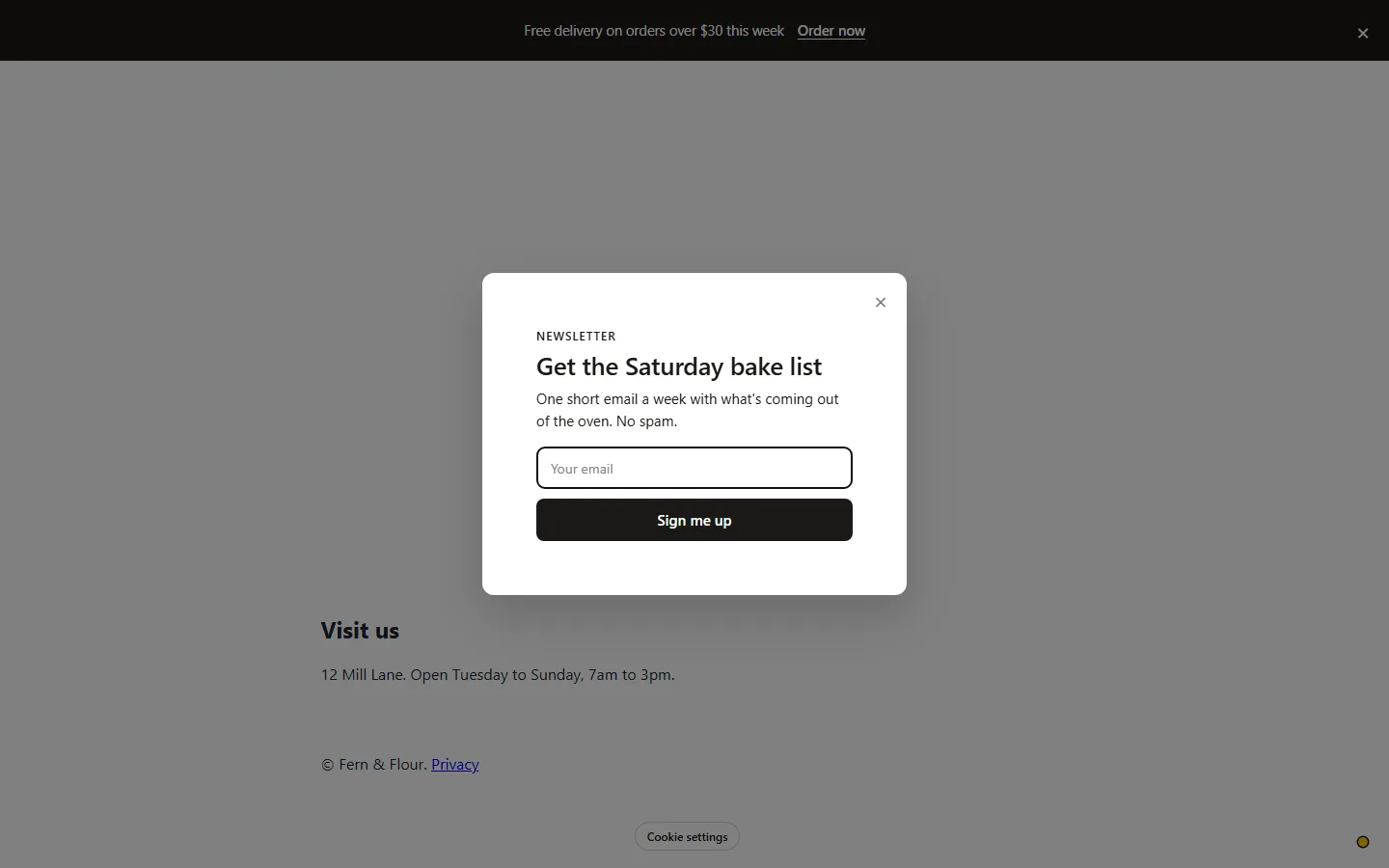
A newsletter box, a sale bar or a last offer used to mean another tool, another script and a look that didn't match your site. Now it lives in dotsy, next to your pages.
What's new?
- Five formats. Box, Slide-in, Full screen, Bar at the top and Bar at the bottom. You can make several bars; a visitor sees at most one bar at the top, one at the bottom and one box on a page.
- Start from an idea. Nine ready-made popups: Newsletter signup, Exit offer with a code, Free download, One-question survey, “Still looking?” nudge, Announcement bar, Offer with a countdown, Link bar and Welcome screen. Each one starts turned off, so nothing shows until you turn it on and publish.
- Your site's look. dotsy reads your site's fonts, colours and buttons once, so a new popup matches. Change the look for all popups or for one. If dotsy can't read your site, popups use a plain look until you set one.
- Turn any section into a popup. In the editor, right-click a section and choose Turn into popup. The section stays on the page too.
- You pick when it opens. After some seconds, After scrolling, When leaving the page or When someone clicks…, or only from your own button or link. Choose the pages, computers, tablets or phones, new or returning visitors, how often it comes back, and start and end dates.
- Kind to phones. You can change anything for smaller screens, even the format. By default, nothing covers a page during the first 10 seconds of a visitor who came from Google on a phone.
- Forms without a reload. A form in a popup sends without leaving the page and shows your thank-you message. The answer lands in your Forms inbox with your other submissions.
- See how it does. Each popup shows Views, Closed, Conversions and the conversion rate for the last 30 days.
- Turn it off right away. Turn off now takes one popup off your live site at once. Your other unpublished changes stay drafts.
- Your AI assistant can do it too. Ask it to add, change or remove a popup: it uses
get_popups,put_popupanddelete_popup.
How to use it
- Open your site and go to Content › Popups, then click Add popup.
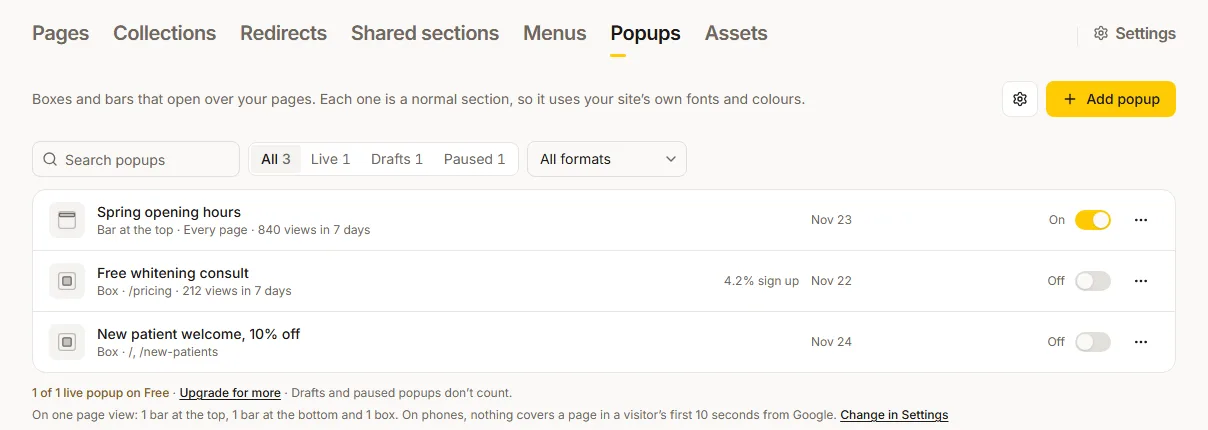
Content › Popups lists every popup with its format, pages and views. - Pick an idea, give it a name and click Create popup.
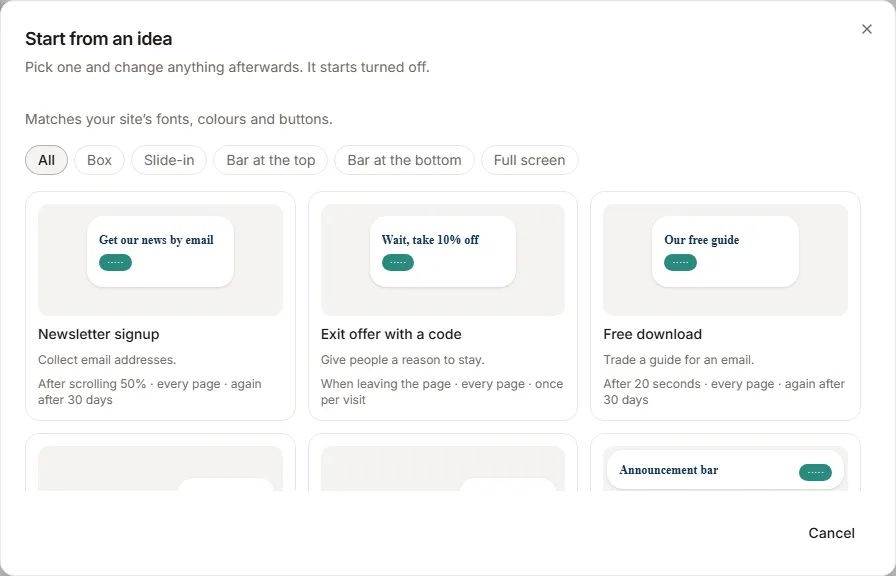
Start from an idea: every popup starts turned off. - Change the words and when and where it opens. Click Preview on site to see it on your page.
- Turn it on and publish your site.
Step by step, with screenshots: How do I add a popup or a bar to my site?
Who is it for?
Every plan, including Free. A Free site can have one popup live at a time (a bar counts), and drafts and paused popups don't count. Paid plans have no limit on live popups. See pricing for what each plan includes.
More from this release
- The cookie banner has its own settings, and popups never cover it: a cookie banner that looks like your site.
- This shipped from the roadmap: Popups and bars that match your site.
From the roadmap
Requested , released : 19 days from request to release.
See it on the roadmapVote on the roadmap to hear when your ideas are released.