In the dashboard or editor, click the ? button in the top bar and choose Report a bug: a screenshot of the page is attached, you say what happened and click Send report. Working with an AI agent? Ask it to "report this to Dotsy" and it files the report with the error attached.
Reports go to the Dotsy team. A person reads each one, and we reply in the dashboard and by email.
Report a bug from the dashboard
- On the screen where the problem happened, click the ? button in the top bar, next to the bell (or press ?), and choose Report a bug. In the editor, the ? button is at the right end of the editor bar.
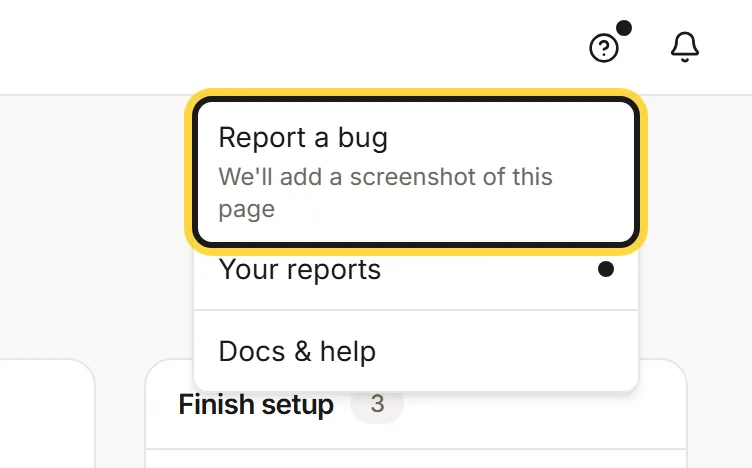
Click the ? button in the top bar, then Report a bug. - Under What happened?, say what you did and what went wrong. What did you expect? is optional. The screenshot of the page is already attached; click Retake if the page changed, or Remove screenshot to send none.
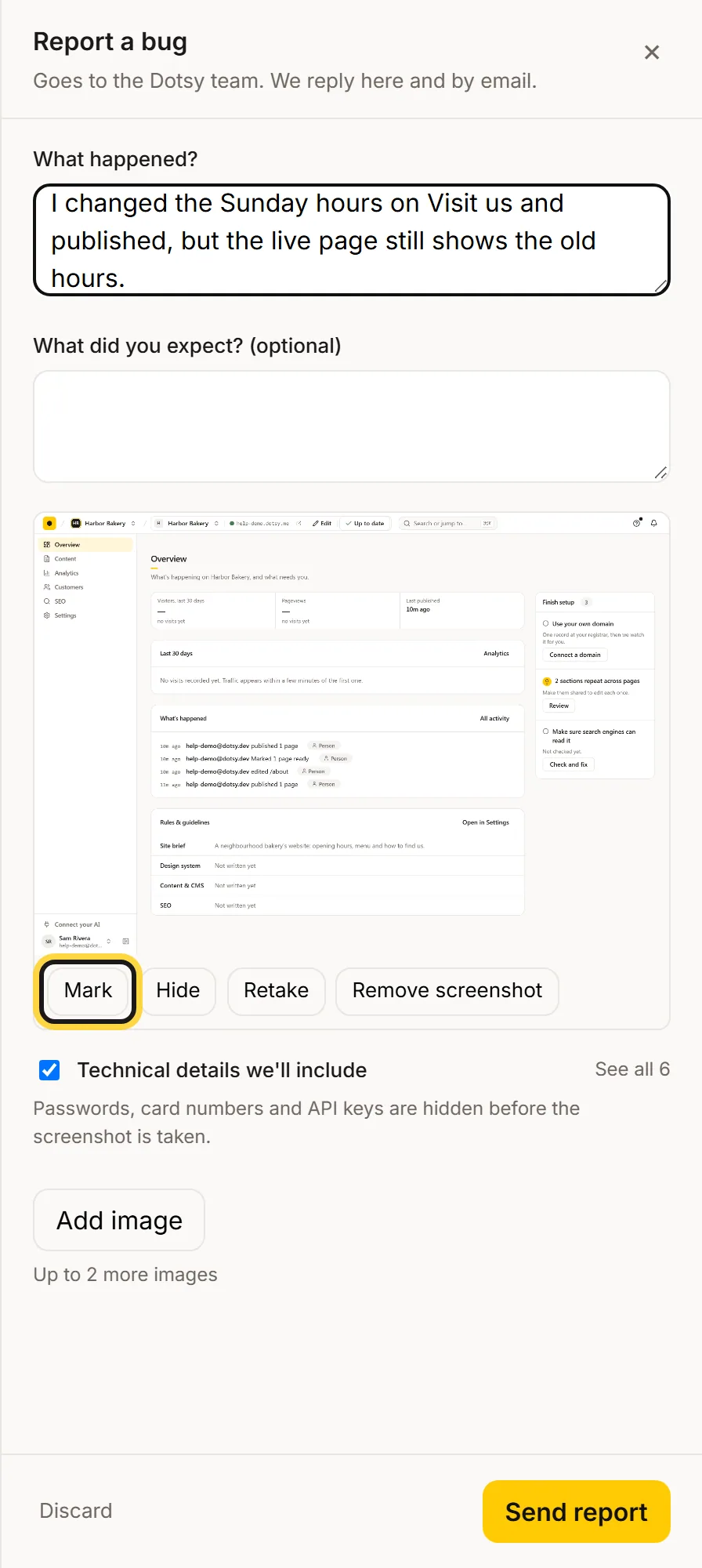
Say what happened. The screenshot of the page is already attached. - To point at something, click Mark: choose Box or Pen to draw, Blur to hide anything private, then click Done. Blurring happens in your browser; only the blurred image is sent.
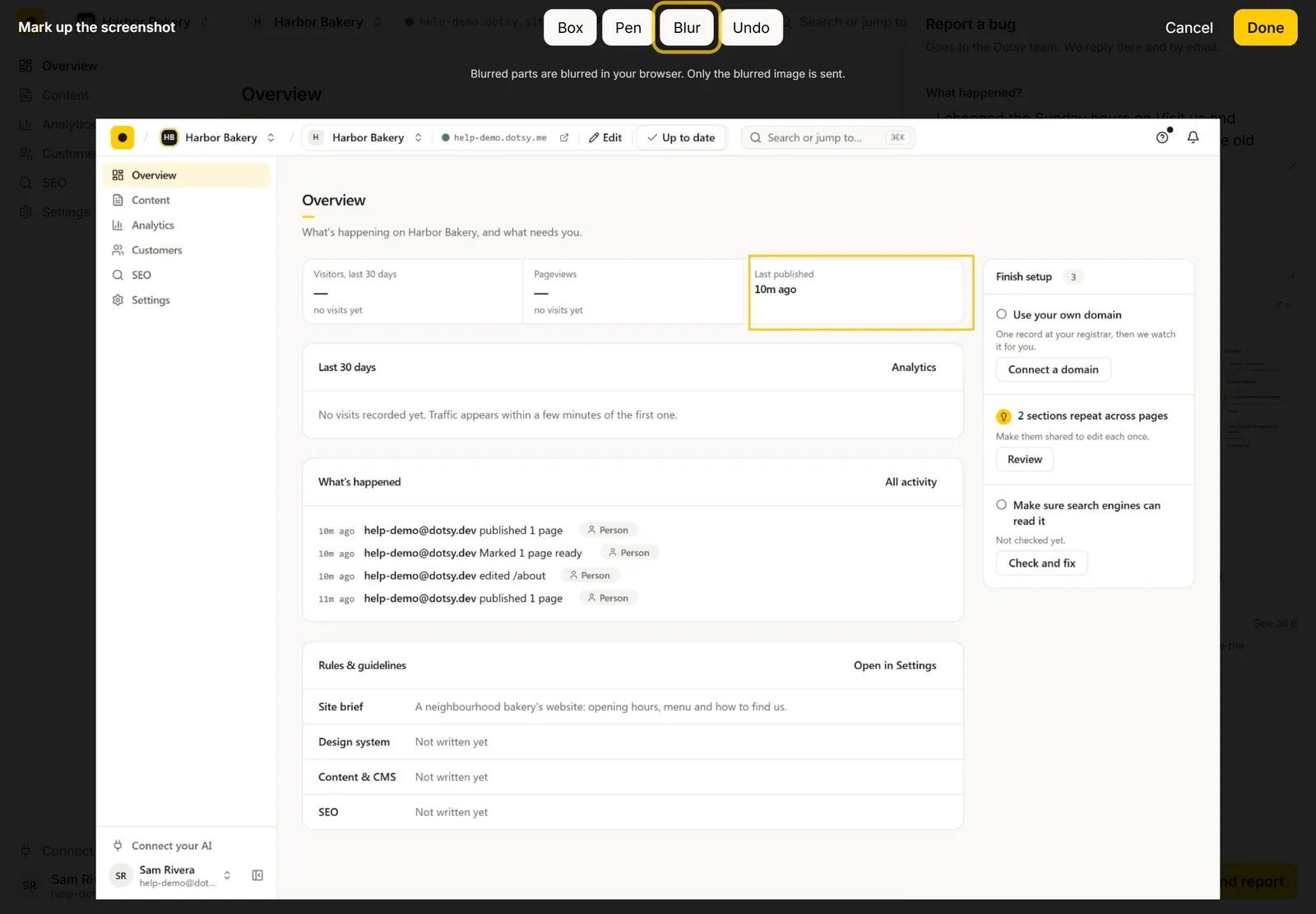
Mark draws a box or a line on the screenshot; Blur hides anything private before it is sent. - Optional: click Add image to attach up to two more images (PNG, JPG or WebP, up to 5 MB each). Leave Technical details we'll include ticked unless you'd rather not send them; See all shows exactly what's in it.
- Click Send report. You see "Thanks — we've got it" with your report number.
Read and answer our reply
- Click ? › Your reports. When there's a reply you haven't read, the ? button turns dark and the report has a dot. Each report shows its status: New, Needs your info, Fixing, Fixed or Closed.
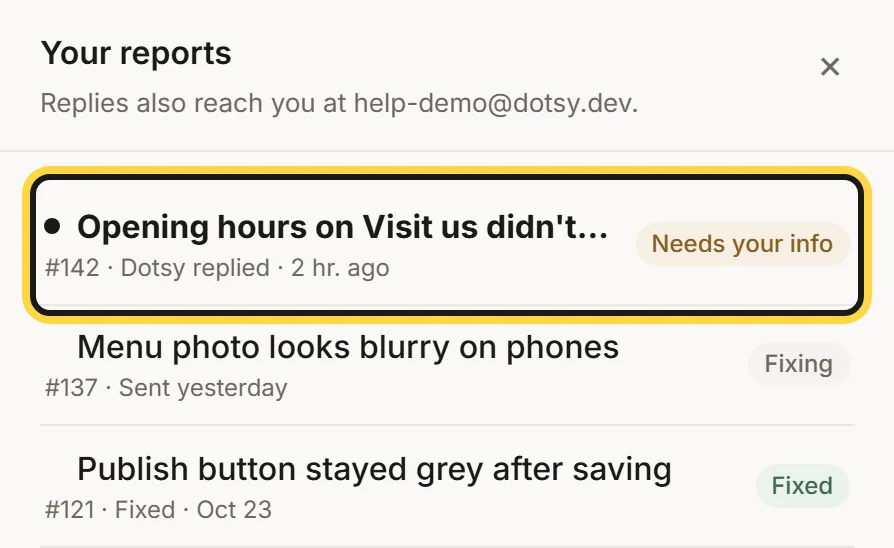
Help › Your reports lists every report you sent and its status. - Click a report to read the conversation, type in Write a reply… and click Send reply. You can also reply to the email we sent you; your answer lands on the same report.
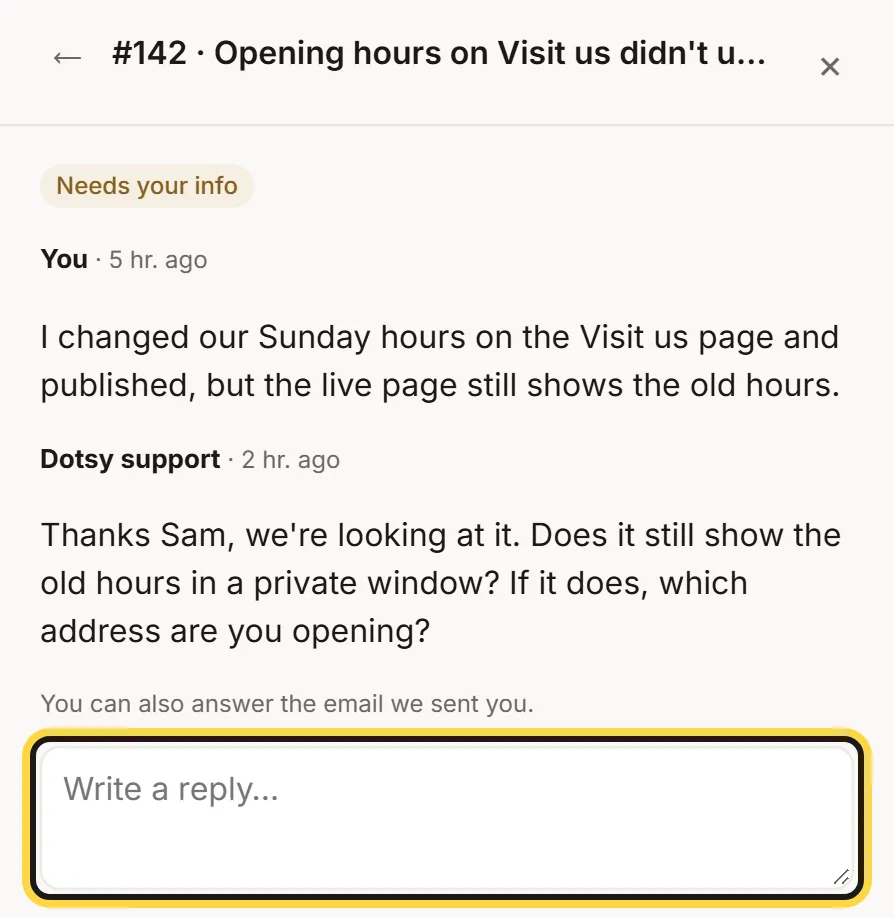
Open a report to read our reply and answer here, or reply to the email.
Report a bug from your AI agent
If Claude, ChatGPT, Cursor or another MCP client is connected to Dotsy, ask it to report the problem ("Publishing failed, please report it to Dotsy"). It calls report_bug; the recent Dotsy errors on your account are attached automatically. The agent tells you the report number, and it can check for our reply with get_report and answer our questions with reply_to_report. Not connected yet? See How do I connect Dotsy to Claude, ChatGPT or Cursor?
What we include, and what we don't
- Included when the box is ticked: recent error lines, failed requests, the last pages you visited with times, your browser and the dashboard version, plus recent job errors on your account.
- Never included: your page content (except what's visible in the screenshot you send), cookies or passwords. Keys and email addresses in the details are masked.
- Hidden in the screenshot automatically: passwords, card numbers and API keys.
Troubleshooting
"We couldn't capture this page"
Some pages can't be captured by the browser. Drop an image into the panel or click choose a file to attach your own screenshot, or click Try again.
"That's the limit — remove one to add another"
A report holds three images in total, and the page screenshot counts as one. Remove one to add another.
FAQ
What happens if someone already reported the same bug?
We add your report to the first one and tell you so. You still hear from us when it's fixed.
I closed the panel before sending. Is my report lost?
No. Closing the panel keeps your text in that browser tab; open Report a bug again to pick up where you left off. Discard throws the draft away.
Does reporting a bug cost anything?
No. It works on every plan, including Free.